Explain DNS in 6 minutes
After spending many hours digging through scattered documentation and technical jargon, I want to write down here a condensed 6-minutes read that contains all necessary information that help you feel confident working with DNS, from understanding basic concepts to typical steps for purchasing and configuring your domain.
What is a domain?
A domain is human-friendly name that map to an alphanumeric IP value, for example google.com or reactjs.org. Instead of remembering an IP like 142.250.4.113, we use google.com when we want to go to Google page.
💡 You can usenslookupto see the real IP address of a domain. Try open terminal and typenslookup google.com.
Structure of a domain
A domain is split by dots. You can imagine it as a tree. Each separated part is a leaf, and dots are branches. The ones closer to the right are nearer to the root of the tree.
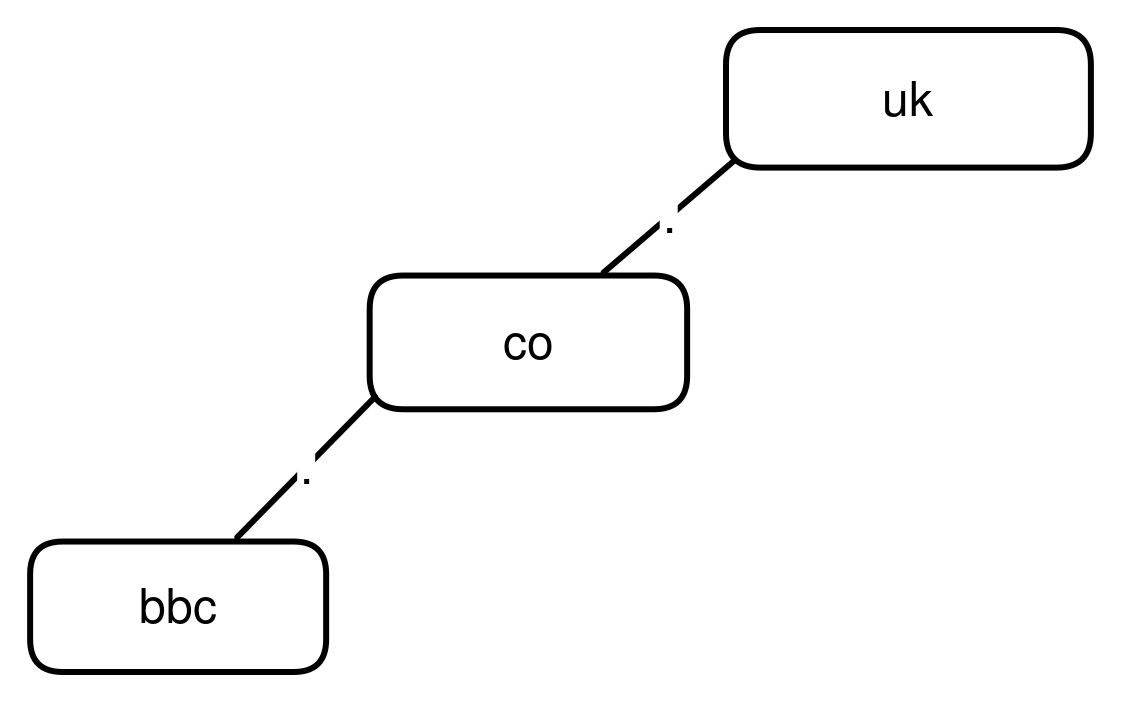
The domain tree
We call the rightest-most part is Top-Level Domain or TLD for short.
google.com
 ^      ^
 |      |__ top level domain
 |
 |__ second-level domain
Who manages these names?
Top-level domains (.net, .com) (TLD for short) are managed by organizations called domain name registry. Registries’ role is to maintain records which individual domain belongs to which people and organizations. These registries, in turn, are managed by IANA (Internet Assigned Number Authority), a department of ICANN (Internet Corporation for Assigned Names and Numbers) — the highest-level non-profit organization in charge of over-watching the whole domain system.
These domain name registries allow registrars (domain name seller) to lease the domain names to domain name owners (like us!).
Give an example, when we buy a domain name, say google.com. We go to a registrar, we pay them an amount of money. The registrar must run to VeriSign — the registry managing domains belonged to .com TLD — and notify and pay a fee to VeriSign to update the records.
It’s like how a coffee shop works. When you order a coffee, the shop doesn’t roast the coffee beans itself. It need to buy roasted coffee from a coffee roaster instead.
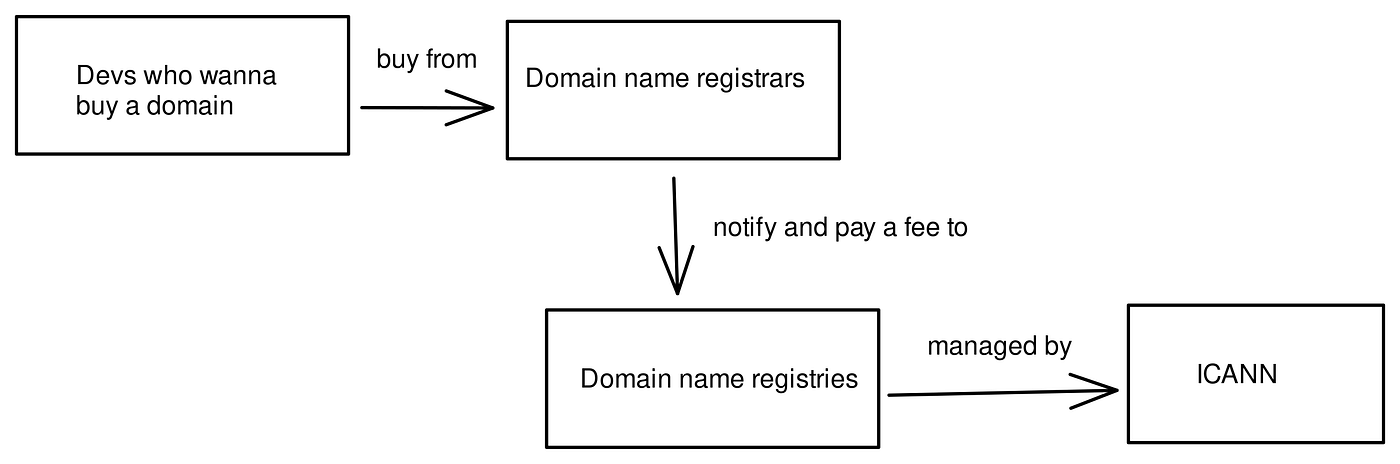
DNS economy
💡 Technically, we don’t buy the domains, we just rent it for a specific time. Maximum reservation is 10 years.
💡 You can check out the list of official registrars at https://www.icann.org/en/accredited-registrars. Some of the famous names are Namecheap, GoDaddy, Google Domain, Cloudflare Registrar.
How DNS convert a domain name to an IP address?
When users enter a domain in the browser, the network service in a user’ computer will send a request to a DNS Resolver server to know which IP address that domain represents.
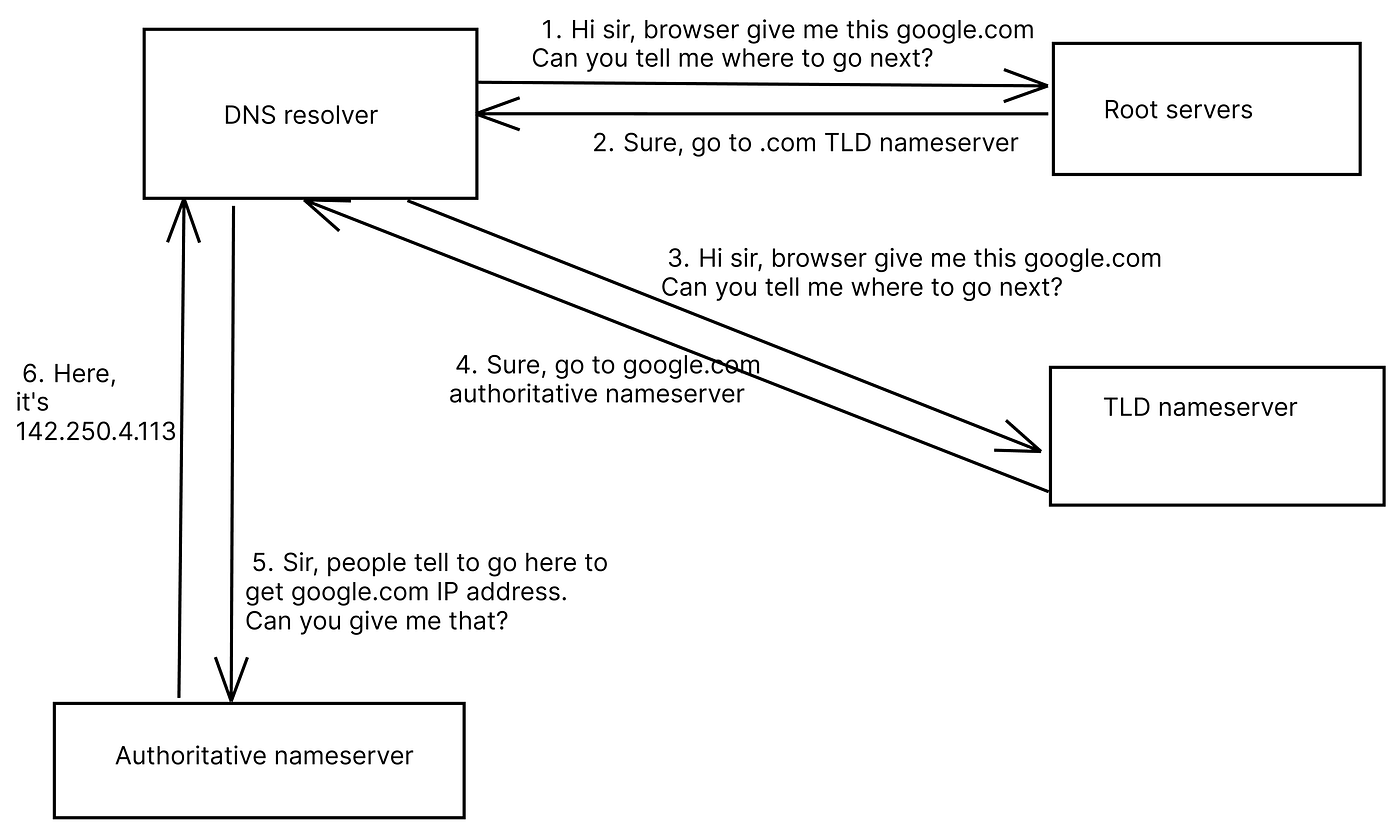
Domain resolving process
DNS Resolver is the first stop, it’s a server typically managed by your internet service provider. That server calls to Root server (managed by ICANN). Root server redirects the request to a TLD nameserver (managed by domain name registry). TLD nameserver then redirects again to Authoritative nameserver.
Authoritative nameserver is run by cloud-providers like Digital Ocean, AWS, Azure, etc. Authoritative nameserver is the final stop. It contains a DB called Zone file (just a text file actually). The text file contains the final piece of information we want — the specific IP address the domain representing.
The DNS hierarchy:
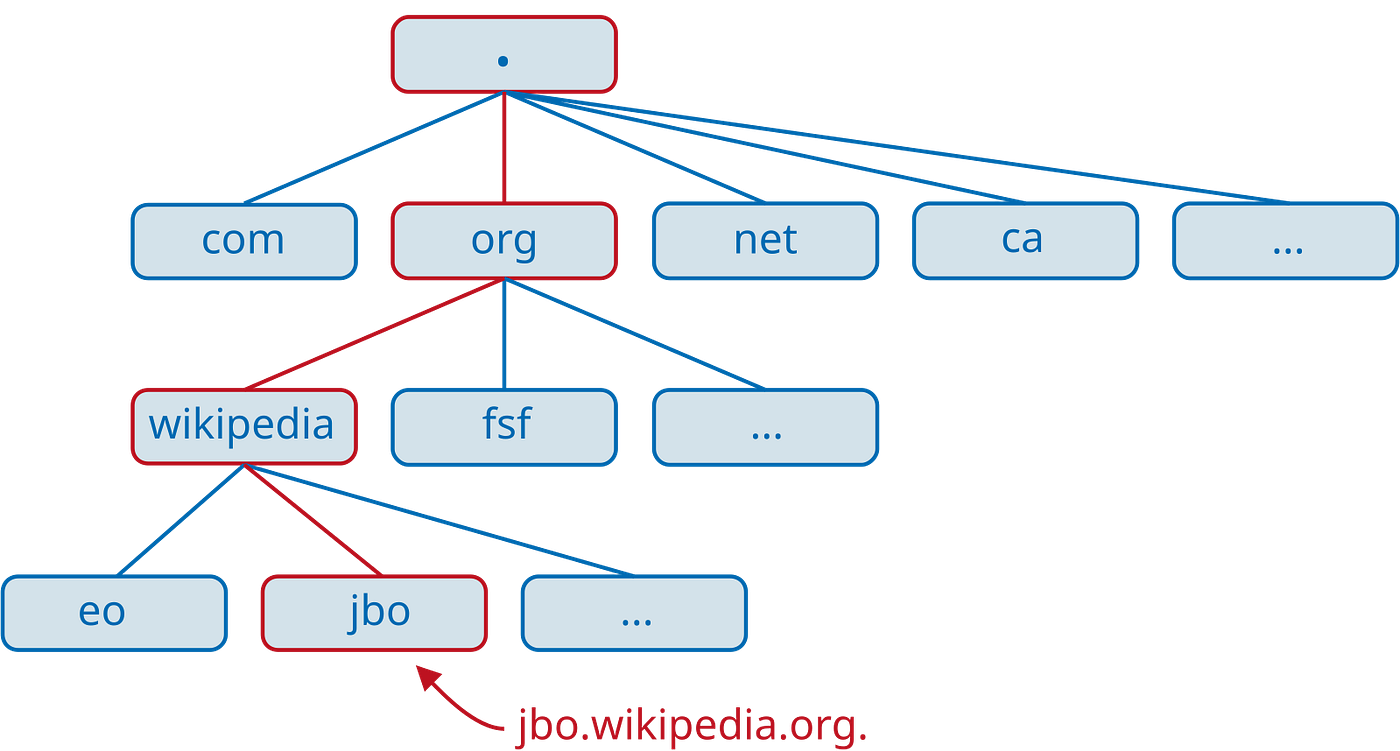
What’s inside these servers?
As said, these nameservers has a text database call zone file.
Here’s an example of a zone file:
$ORIGIN example.com.
@                      3600 SOA   ns1.p30.dynect.net. (
                              zone-admin.dyndns.com.     ; address of responsible party
                              2016072701                 ; serial number
                              3600                       ; refresh period
                              600                        ; retry period
                              604800                     ; expire time
                              1800                     ) ; minimum ttl
                      86400 NS    ns1.p30.dynect.net.
                      86400 NS    ns2.p30.dynect.net.
                      86400 NS    ns3.p30.dynect.net.
                      86400 NS    ns4.p30.dynect.net.
                       3600 MX    10 mail.example.com.
                       3600 MX    20 vpn.example.com.
                       3600 MX    30 mail.example.com.
                         60 A     204.13.248.106
                       3600 TXT   "v=spf1 includespf.dynect.net ~all"
mail                  14400 A     204.13.248.106
vpn                      60 A     216.146.45.240
webapp                   60 A     216.146.46.10
webapp                   60 A     216.146.46.11
www                   43200 CNAME example.com.
The most interesting lines for a developer are:
60 A     204.13.248.106
webapp                   60 A     216.146.46.11
www                   43200 CNAME example.com.
                       3600 MX    30 mail.example.com.
Each line is called a record. A, CNAME and MX are the types of records. The number 3600, 60, etc. are time-to-live (TTL) — the shortest time needed for a record update to take effect.
Let’s go line by line.
A record
60 A 204.13.248.106Record A points the domain to an IPv4 address. The above line translates to Point the root domain (example.com) to IP 204.13.248.106 — changes to this record will take at least 60s to take effect.
webapp 60 A 216.146.46.11This one means Points domain webapp.example.com to IP 216.146.46.11 — TTL 60 seconds. webapp is a subdomain relative to root.
CNAME record
When you want to have different names (aliases) for a domain, you use CNAME (short for canonical name) record.
www 43200 CNAME example.com.This line is like saying www.example.com is a different name for example.com.
We can achieve the same result with an A record:
www 43200 A 216.146.46.11.We can do either way. However, sometimes we only know the domain we want to set alias for and not the exact IP address. In that case, we must use CNAME instead of A.
MX record
3600 MX 30 mail.example.com.MX record is for email server. Email server will use a different network protocol than a web server (STMP). That’s why we need a new type of record to denote it.
Like CNAME, it must point to another domain. The number 30 is the priority. Server will prefer the lower value to choose.
💡 One of the jobs of a registrar like Namecheap, Google Domain, etc. is to go and ask registries to update these databases for us.
Typical steps for developers to buy and config a domain for web server
The steps are:
- Go to your favorite registrar, and pay for the domain you want, like any other e-commerce.
- Because these registrar need to tell domain registry to update its database, we need to tell them which final authoritative nameserver containing the final IP address. For example, your server is on Digital Ocean. Digital Ocean will need to give you list of its authoritative nameserver. You then go inside a dashboard provided by registrar and add these name servers.
- Config DNS records on nameserver side. (typically, in cloud providers’ admin page)
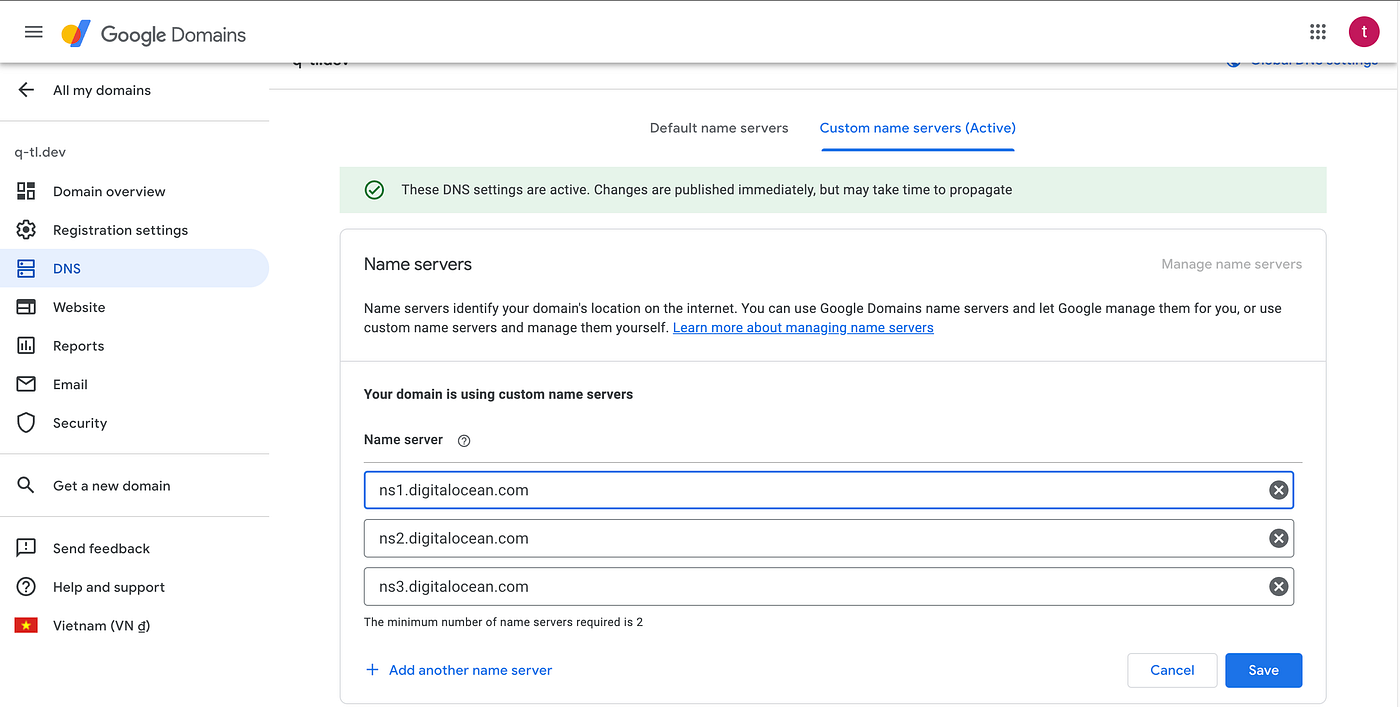
Add name servers.
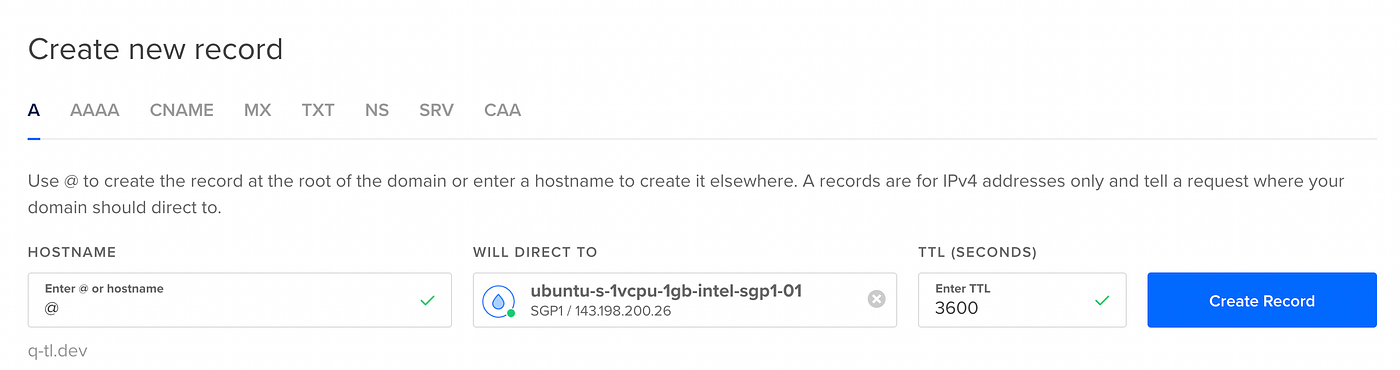
Edit A record to the final IP address of your server.
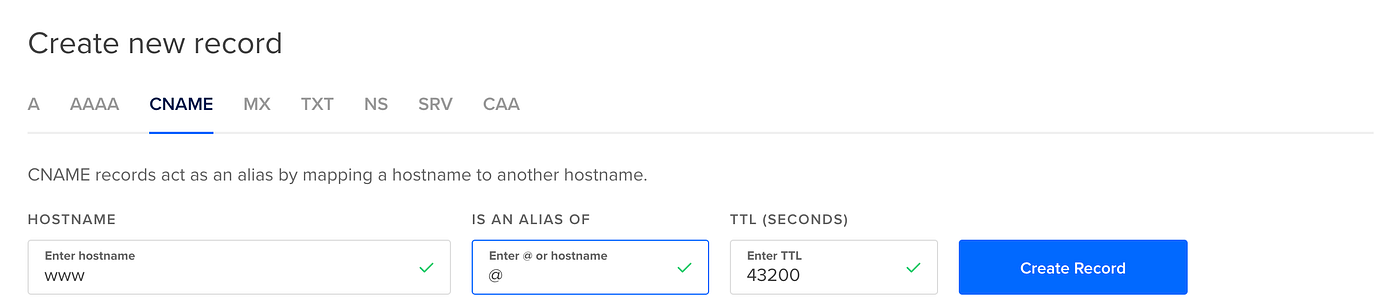
Edit CNAME if you need to set aliases.
💡 How to verify nameservers are set correctly?
Open your terminal and enter this command:
nslookup -type=soa <name-of-the-domain-you-buy>If you see the correct nameservers you just set, then you succeeded.
Summary
Buy a domain from a domain name seller, in that domain name seller dashboard, add nameservers that have your final IP address. Nameservers are usually provided by the cloud provider where you deploy your web application (Digital Ocean, AWS, Azure, etc.) In cloud provider’s dashboard, config an A record to point to the exact IP address of your server. Config other types of DNS records if necessary.
💡 Besides nslookup command, you can use https://dnschecker.org/ and https://www.whois.com/whois to verify your own domain is working or find information about a specific domain.