Decoding node-gyp Errors: A Systematic Mental Model for Reliable Fixes
Stop guessing with node-gyp errors. Learn the systematic approach to fix native module builds in Node.js and Docker.
Read the article here if you’re not Medium members.
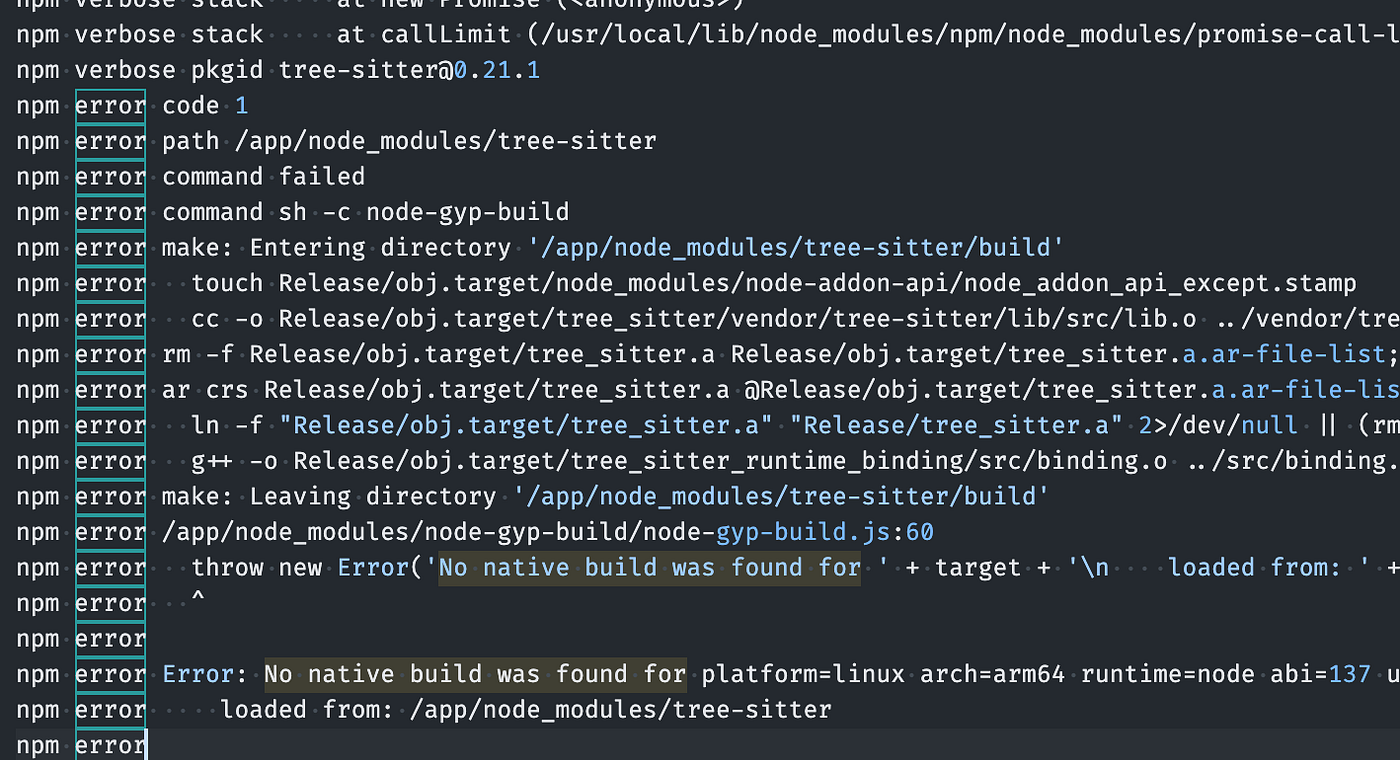
When installing Node.js packages that contain native code, developers frequently encounter this error:
npm error command sh -c node-gyp-build
npm error code 1
This error indicates a failure in the native module installation process. Understanding the underlying mechanism allows you to diagnose and resolve the issue systematically.
By the end of this article, you will be able to:
- Identify why a native module failed to install
- Determine whether prebuilt binaries exist for your system
- Compile native modules from source when necessary
- Design Docker builds that handle native dependencies
The Native Module Installation Process
When npm encounters a package with native code, it executes a two-phase strategy:
Phase 1: Prebuilt Binary Search
The package installation script:
- Detects the host system’s platform and architecture
- Searches for a matching precompiled binary (bundled with the package or from a remote source)
- Loads the binary if found
Phase 2: Source Compilation Fallback
If no prebuilt binary exists:
- The package attempts to invoke
node-gyp rebuild node-gyprequires a C++ compiler, Python, and build tools- Compilation proceeds if all dependencies are present
- The process fails if any required tool is missing
The error message npm error command sh -c node-gyp-build indicates that Phase 1 failed (no prebuilt binary found) or Phase 2 failed (compilation unsuccessful).
Section summary: Native module installation follows a two-phase process: first searching for prebuilt binaries, then falling back to source compilation. Errors occur when both phases fail.
Platform and Architecture Dependencies
By the end of this section, you will be able to: Determine your system’s platform and architecture, and explain why binaries are not portable across different systems.
Native binaries are platform-specific and architecture-specific. A binary compiled for one system configuration cannot execute on a different configuration.
Operating System Platform
The operating system defines the interface between compiled programs and hardware. Each operating system provides:
- System calls: Low-level functions for file operations, networking, and memory management
- Binary format: Executable and Linkable Format (ELF) on Linux, Mach-O on macOS, PE on Windows
- Dynamic library format:
.so(Linux),.dylib(macOS),.dll(Windows) - File system conventions:
/usr/localvsC:\Program Files
A binary compiled for Linux uses ELF format and Linux system calls. This binary cannot execute on macOS, which expects Mach-O format and different system call conventions.
Processor Architecture
The processor architecture defines the instruction set that the CPU can execute:
- x64 (x86_64, AMD64): 64-bit instruction set used by Intel and AMD processors
- arm64 (aarch64): 64-bit ARM instruction set used by Apple Silicon and ARM servers
Machine code compiled for x64 contains different instructions than code compiled for arm64. An x64 processor cannot decode or execute arm64 instructions.
System Configuration Matrix
| Platform | Architecture | Example Systems          | Node.js Identifier |
| -------- | ------------ | ------------------------ | ------------------ |
| macOS    | x64          | Intel Macs (pre-2020)    | `darwin-x64`       |
| macOS    | arm64        | Apple Silicon (M1/M2/M3) | `darwin-arm64`     |
| Linux    | x64          | Ubuntu, Debian servers   | `linux-x64`        |
| Linux    | arm64        | Raspberry Pi, Graviton   | `linux-arm64`      |
| Windows  | x64          | Windows 10/11 PCs        | `win32-x64`        |
Verifying Your System Configuration
Execute these commands to determine your system’s configuration:
# Display architecture
node -p process.arch

# Display platform
node -p process.platform

# Display combined identifier
node -p "process.platform + '-' + process.arch"
Section summary: Native binaries are bound to specific platform-architecture combinations. Binaries compiled for linux-x64 cannot run on darwin-arm64. The combination of process.platform and process.arch uniquely identifies your system configuration.
Prebuilt Binary Distribution
By the end of this section, you will be able to: Explain how package maintainers distribute prebuilt binaries and identify why a binary might not exist for your system.
Package maintainers compile native code for common platform-architecture combinations and make these prebuilt binaries available to users through various distribution methods. This approach eliminates the compilation requirement for most users.
Distribution Mechanism
The installation script executes the following algorithm:
- Read
process.platform,process.arch, andprocess.versions.napi - Construct a binary identifier (e.g.,
darwin-arm64-napi-v8) - Search for a matching binary (either bundled locally in the package or from a remote location)
- Load the binary if found
- Fall back to source compilation if not found
Note: Different packages use different distribution strategies. Some packages (using prebuildify + node-gyp-build) bundle prebuilt binaries directly in the published npm package under a prebuilds/ directory. Others (using prebuild + prebuild-install) download binaries from remote repositories like GitHub Releases or S3 buckets during installation.
Binary Availability Constraints
Package maintainers typically provide binaries for common configurations. Less common configurations require source compilation.
Common scenarios where prebuilt binaries do not exist:
- Newly released platforms: Node.js 24 released before package maintainers built binaries
- Uncommon architectures: Windows on ARM, Alpine Linux
- Older Node versions: Maintainers stop building for EOL versions
- N-API version mismatch: Binary requires N-API v9, your Node provides v8
Self-check question: Before installing a package with native dependencies, how would you determine if a prebuilt binary exists for your system?
Section summary: Package maintainers distribute prebuilt binaries for common system configurations using various strategies: some bundle binaries directly in the npm package, others download them from remote locations. The installation script searches for a matching binary based on platform, architecture, and N-API version. If no match exists, source compilation is required.
Native Bindings: JavaScript-to-C++ Interface
By the end of this section, you will be able to: Explain what a native binding is and why compilation is necessary.
JavaScript code running in the V8 engine cannot directly invoke C++ functions. A native binding provides the layer between JavaScript and native code.
Binding Execution Flow
When JavaScript calls a function backed by native code:
- JavaScript invocation:
const result = nativeModule.parse(input) - Binding receives call: Type validation and conversion to C++ types
- Native execution: C++ code processes data
- Return binding: C++ result converted to JavaScript type
- JavaScript receives result: Control returns to V8
Compilation Requirement
The binding code must be compiled into a shared library (.node file) that Node.js can load at runtime. This file contains:
- Compiled C++ code
- V8 API integration code
- Symbol table for function resolution
- Platform-specific shared library headers
This compilation produces a platform-specific, architecture-specific binary.
The node-gyp Build Process
node-gyp orchestrates the compilation process:
Step 1: Configuration
node-gyp configure- Reads
binding.gyp(build configuration file) - Locates Node.js headers
- Generates platform-specific build files (Makefile, Visual Studio project)
Step 2: Compilation
node-gyp build- Invokes the system C++ compiler (g++, clang, MSVC)
- Compiles C++ source files
- Links against Node.js libraries
- Produces
.nodeshared library
Combined command:
node-gyp rebuild # configure + buildBuild Dependencies
Source compilation requires:
| Requirement  | Linux      | macOS                    | Windows                   |
| ------------ | ---------- | ------------------------ | ------------------------- |
| C++ Compiler | g++, clang | Xcode Command Line Tools | Visual Studio Build Tools |
| Python       | python3    | python3                  | python3                   |
| Build Tools  | make       | make                     | msbuild                   |
Section summary: Native bindings provide the interface between JavaScript and C++ code. The binding must be compiled into a platform-specific shared library using node-gyp, which requires a C++ compiler, Python, and platform-specific build tools.
N-API: ABI Stability Across Node Versions
By the end of this section, you will be able to: Explain what and how N-API reduces the number of required prebuilt binaries.
N-API (Node-API) provides an Application Binary Interface (ABI) that remains stable across Node.js versions. This stability allows a single compiled binary to run on multiple Node.js versions.
The Versioning Problem
Before N-API, native addons compiled against V8’s internal APIs. V8’s API changed between Node.js releases:
- Node.js 14.x → 16.x: V8 API changes require recompilation
- Node.js 16.x → 18.x: V8 API changes require recompilation
- Result: Maintainers must build separate binaries for each Node.js version
N-API Solution
N-API abstracts V8’s internals behind a stable C API:
| Approach      | API Target   | Recompilation Required         |
| ------------- | ------------ | ------------------------------ |
| Direct V8 API | V8 internals | Every Node.js major version    |
| N-API         | Stable ABI   | Only for N-API version changes |
N-API versioning:
- N-API versions increment independently of Node.js versions
- Each N-API version is backward compatible
- A binary built for N-API v8 runs on any Node.js that supports N-API v8+
Check your N-API version:
node -p process.versions.napiBinary Distribution Impact
With N-API, package maintainers can reduce binary variants:
Without N-API:
darwin-arm64-node14darwin-arm64-node16darwin-arm64-node18darwin-arm64-node20- (4 binaries per platform-architecture)
With N-API:
darwin-arm64-napi-v8- (1 binary works across Node 16, 18, 20, 22)
Important limitation: N-API provides ABI stability across Node.js versions, but binaries remain platform-specific and architecture-specific. You still need separate binaries for darwin-arm64 and linux-x64.
Section summary: N-API provides a stable ABI that allows a single compiled binary to run across multiple Node.js versions. This reduces the number of prebuilt binaries maintainers must distribute, but does not eliminate platform and architecture dependencies.
Case Study: Multi-Stage Docker Build for Native Dependencies
By the end of this section, you will be able to: Design a Docker build that handles native dependencies when prebuilt binaries are unavailable for your target Node.js version.
Case Study: Multi-Stage Docker Build for Native Dependencies
By the end of this section, you will be able to: Design a Docker build that handles native dependencies when prebuilt binaries are unavailable for your target Node.js version.
Problem Statement
Requirements:
- Application requires Node.js 24 (latest features)
- Application depends on
tree-sitterpackage (contains native code) - Production image should be minimal (slim base image)
Constraints:
tree-sittermaintainers have not yet released prebuilt binaries for Node.js 24- Slim base images do not include C++ compiler or build tools
- Adding build tools to production image increases image size by 400+ MB
Incorrect Approach
FROM node:24-slim

WORKDIR /app
COPY package*.json ./

RUN npm install  # ❌ FAILS

COPY . .
CMD ["node", "server.js"]
Why this fails:
npm installattempts to installtree-sitter- No prebuilt binary exists for Node.js 24
- Installation falls back to source compilation
- Slim image lacks C++ compiler, Python, make
node-gyp rebuildfails
Correct Approach: Multi-Stage Build Strategy
Strategy: Separate JavaScript dependency installation from native module compilation, use an older Node.js version that has prebuilt binaries available, then copy compiled artifacts to the final image.
Stage 1: JavaScript Dependencies
FROM node:24-bookworm AS deps

WORKDIR /app
COPY package*.json ./

# 🚩 Install JavaScript dependencies only, skip all build scripts
RUN npm install --ignore-scripts
Purpose: Install all JavaScript code without triggering native module builds. The --ignore-scripts flag prevents execution of install/postinstall hooks.
Stage 2: Native Module Compilation
FROM node:22-bookworm AS builder

# 🚩 Required to install compilation dependencies
RUN apt-get update && apt-get install -y \
    python3 \
    make \
    g++ \
    && rm -rf /var/lib/apt/lists/*

WORKDIR /app
COPY package*.json ./
COPY --from=deps /app/node_modules ./node_modules

# 🚩 Rebuild only native modules, using Node 22 which has prebuilt binaries
RUN npm rebuild
Purpose:
- Switch to Node.js 22 which has available prebuilt binaries for
tree-sitter - Provide full build environment with compiler toolchain
- Rebuild native modules targeting Node.js 22
Stage 3: Production Runtime
FROM node:24-bookworm-slim AS production

WORKDIR /app

# Copy compiled native modules
COPY --from=builder /app/node_modules ./node_modules
COPY --from=builder /app/package*.json ./

# Execute any remaining JavaScript-only postinstall scripts
RUN npm install --ignore-scripts
COPY . .

EXPOSE 3000
CMD ["node", "server.js"]
Purpose:
- Use Node.js 24 for production runtime
- Keep image minimal (slim base)
- Native modules compiled for Node 22 remain compatible with Node 24 (thanks to N-API ABI stability)
Section summary: When prebuilt binaries are unavailable for your target Node.js version, use a multi-stage Docker build. Compile native modules in a builder stage using an older Node.js version with available binaries, then copy the compiled artifacts to your production image. N-API ABI stability ensures forward compatibility.